How to add a Camius IP camera, DVR, or NVR to the Camius View smartphone app?

Control your security from anywhere with the free Camius View App for iOS and Android. Designed for seamless remote viewing, this app lets you manage your surveillance system, talk to visitors via 2-way audio, and receive smart AI alerts for human, vehicle, sound, perimeter intrusion detection and more. Whether using analog, PoE or wireless cameras , stay connected to your property 24/7 with instant, high-quality video and audio access.

Requirements Before Adding Your Device to the Camius View app

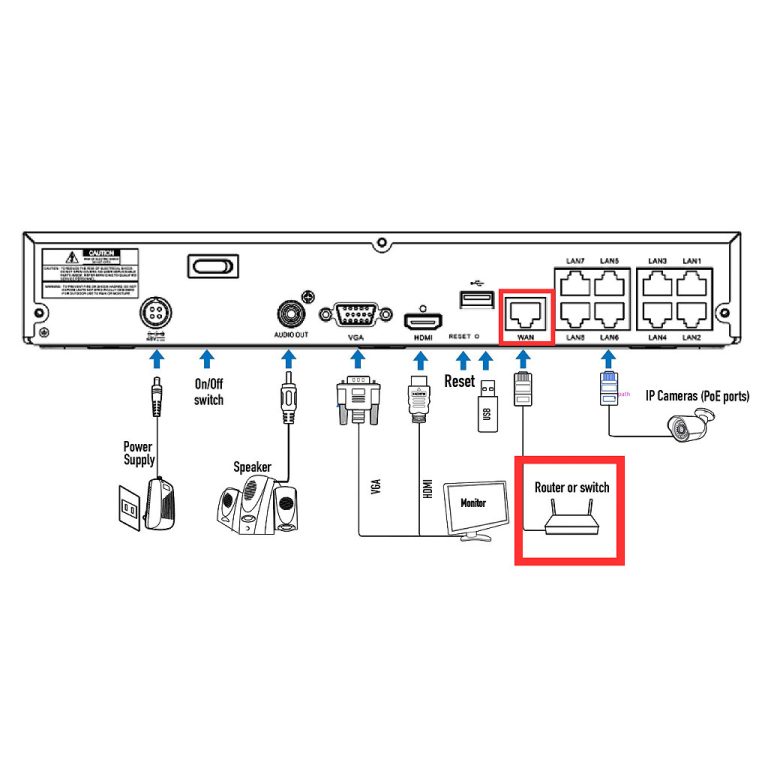
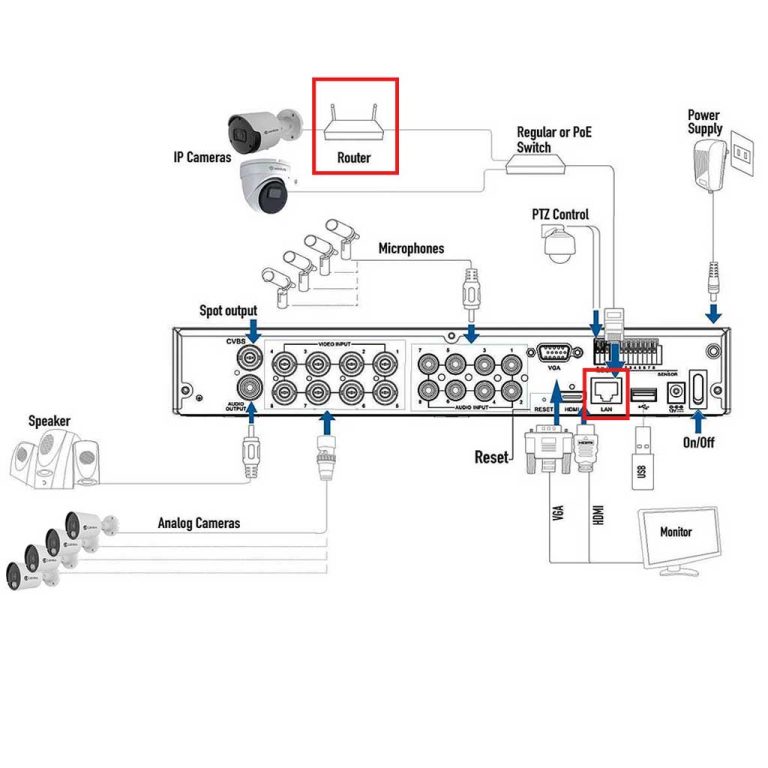
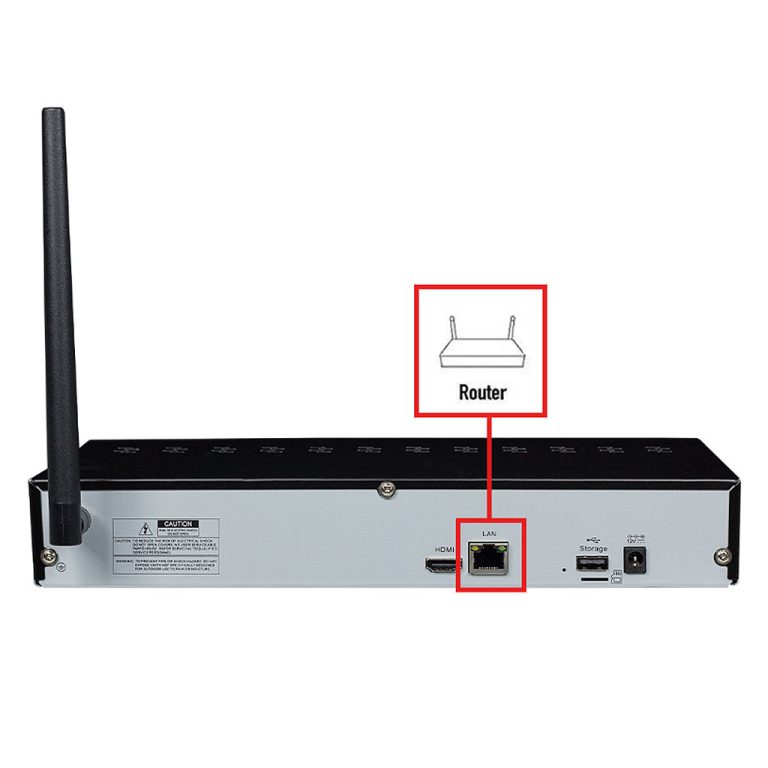
  1. Connect your Camius DVR or NVR to your router using an Ethernet cable from the LAN or WAN port on the back of the recorder. The picture below shows the LAN port location on the IPVAULT1128PR as an example. Other Camius recorders use the same layout. Camius includes a blue network cable for this connection, or you can use your own good network cable.
Camius 8 channel NVR connection diagram
The picture shows the LAN port location on the IPVAULT1128PR as an example

2. On the recorder screen, open Setup then Network. Make sure the DHCP box is on so the router gives the recorder a working network address.

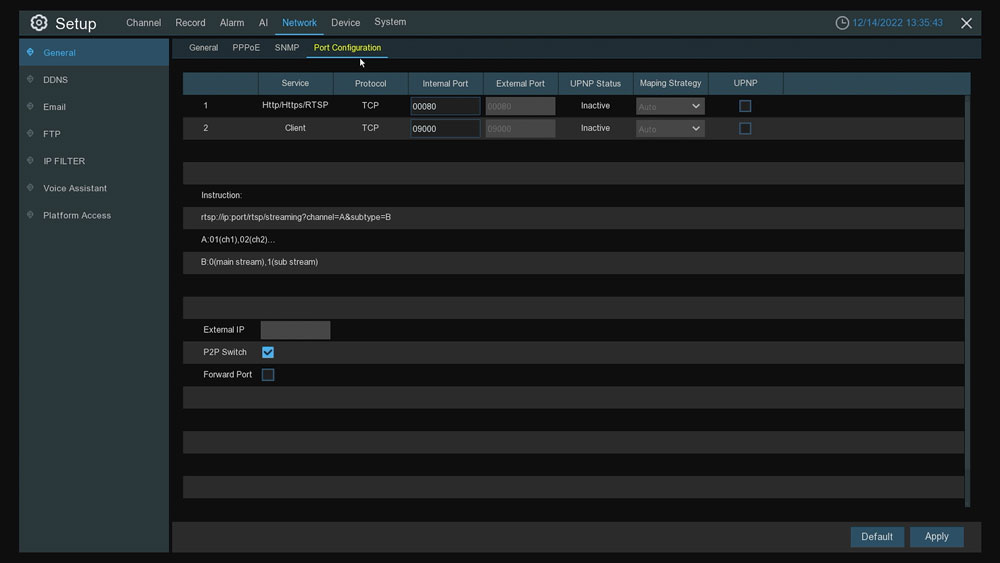
3. In the same Network menu, turn on the P2P switch.

4. Find the P2P ID (QR Code). It is printed on the device label and also appears in the recorder menus.

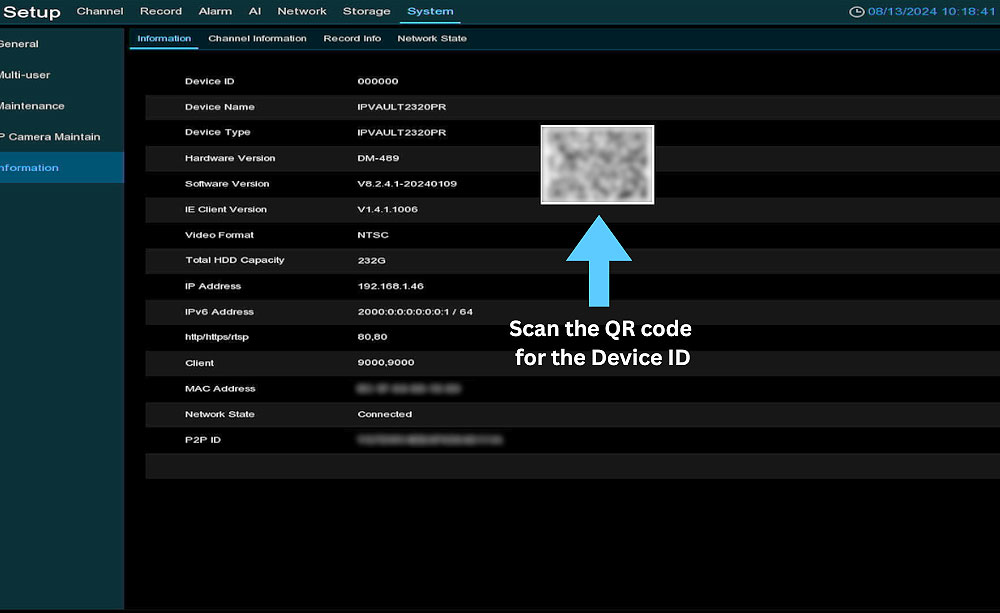
  • If you are using an HDMI monitor, go to Setup >>System >> Information.
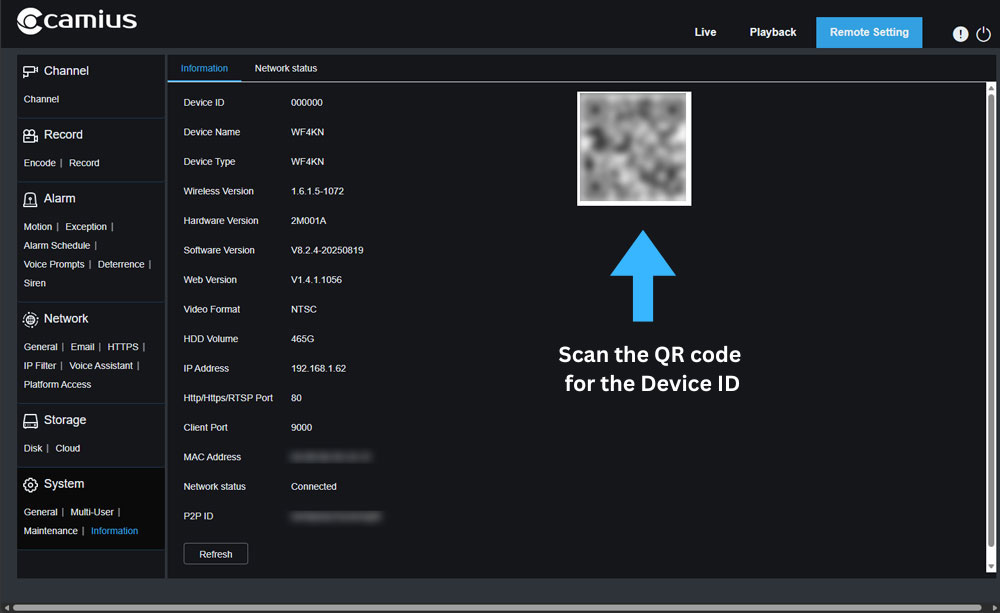
  • If you are using a web browser, go to Remote Setting >> System >> Information.
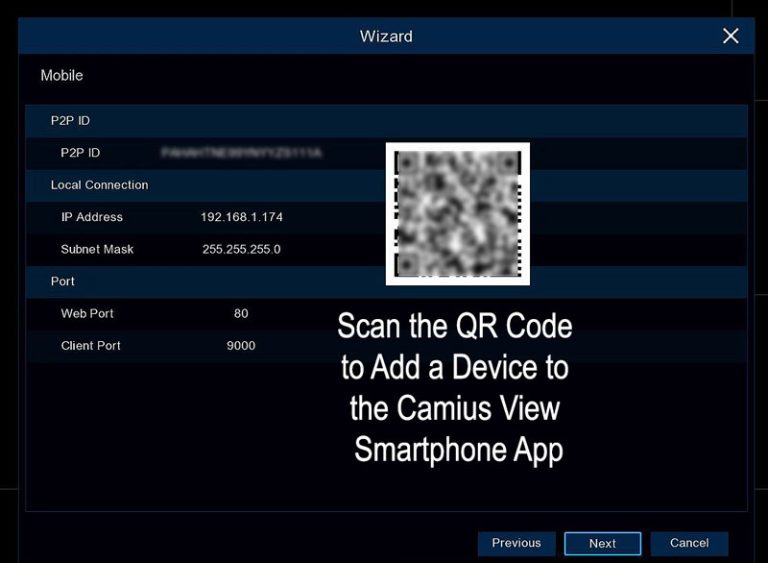
Start wizard P2P ID QR CODE
Start Wizard shows the QR code under the Mobile
Scan the QR code to add Camius DVR NVR to the app
HDMI Monitor menu showing the QR code location in your DVR or DVR recorder

This is a straightforward step-by-step guide on how to add Camius NVR, DVR, or IP cameras to the Camius View app.

Download and install the Camius View iOS or Android app on your smartphone or tablet.

On the first run, the app will require network access and other permissions; once authorized, the app will start a tutorial highlighting the add button. To get to the add device button later, Tap on the top left menu icon and then on Devices to open the Device Manager page

Stay Connected and Secure Anywhere with Camius View CCTV Mobile App How to add a Camius IP camera, DVR, or NVR to the Camius View smartphone app?
  • Tap on the main menu icon App menu icon
  • Tap on the Devices icon App devices icon to open the Device Manager page, and tap on the Plus icon ‘+’ to add a new device.
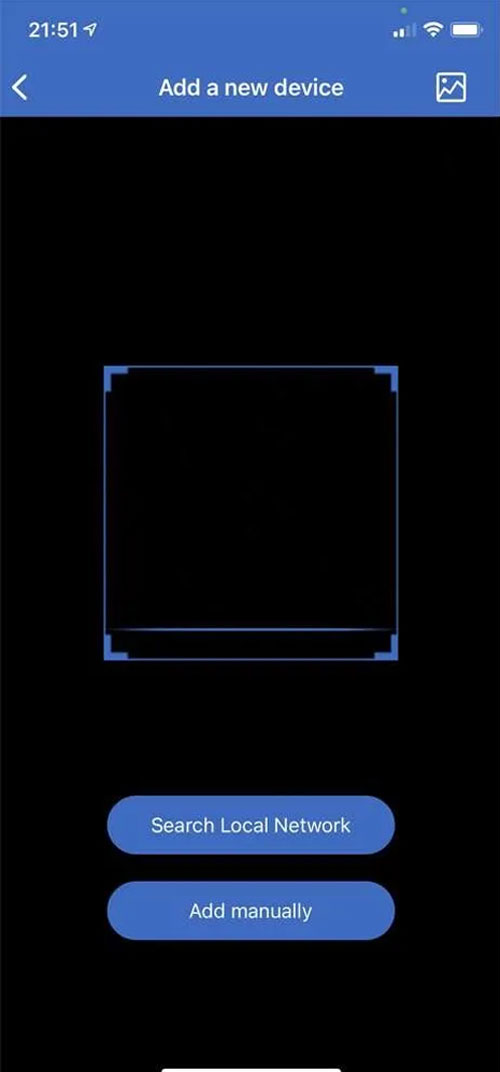
  • Choose NVR/DVR/IPCAM and then select one of 3 ways to add a device to the app using a Search Local Network (option 1), QR Code Scan (option 2), or Add manually (option 3)

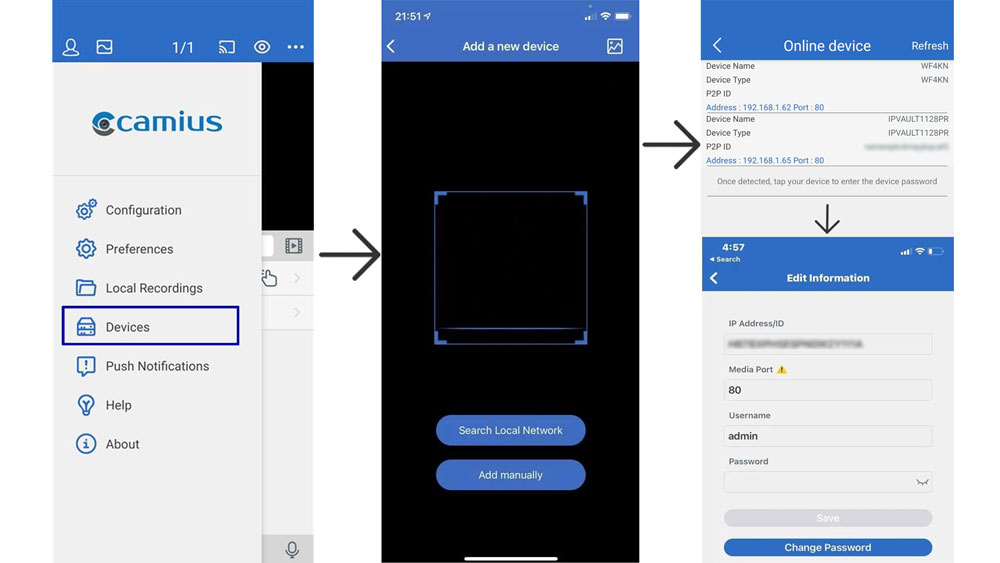
Option 1: Add Device via Local Network Search

  1. Open the app and tap Devices to go to the Device Manager.
  2. Tap the + icon, then select NVR / DVR / IPCAM.
  3. Tap Search Local Network.
  4. When your Camius device appears, select it and enter the device password you created earlier.

Media Port Settings

  • Enter the correct port number in the Media Port field:

Use Port 80 for R-Series recorders

IP Network Video Recorders:

  • IPVAULT1128PR
  • IPVAULT2256PR
  • IPVAULT2320PR
  • IPVAULT8256R
  • IPVAULT4640

Analog Hybrid DVRs (Digital Video Recorder)

  • TRIVUALT4K184R
  • TRIVAULT4K184R2
  • TRIVAULT2168R
  • TRIVAULT4K2168R

Wireless Cameras

  • WF4KN (Wireless NVR)

For IP cameras (R-Series models):

  • SPOT8R / SPOT828A-R / SPOT828A-RB
  • BOLTX536R / IRIS528R
  • IRIS5R / BOLTX5R
  • GUARDVR4KR
  • SCOUT4K4XPTZ
  • BOLTVM5R
  • BOLTVM5R10X
  • Use Port 9000 for non-R-Series devices (older IP cameras, DVRs, and NVRs).

Important Note


Camius View app- add the NVR, DVR or IP camera to the smartphone app - 3 steps

Option 2: Add Device via QR Code or Device ID (Recommended)

  1. Open the app and go to Devices to access the Device Manager.

  2. Tap the + icon, then choose NVR/DVR/IPCAM.

  3. When the QR code scanner opens, point your phone’s camera at the QR code. The app will automatically scan it.

Where to find the QR code:

  • It is on the label of your Camius NVR, DVR, or IP camera.

  • On the System Information screen (viewable on a monitor connected to your NVR or DVR).

  • In the web application, under Remote Setting, when you access the device through a web browser.

  1. Check if your device is online, briefly turn off your phone’s Wi-Fi, and let the app reload.

  2. On the device page, enter the password you created earlier and tap Save. The app will confirm once it’s connected.

You can also add your Camius device manually by entering its P2P ID (recommended).

IMPORTANT: If you add the device using a local IP address, it will only be accessible in the app when your phone is connected to the same local network.
If your device has a public IP address, you can access it remotely by setting up port forwarding described in this guide.

Camius View app add device
WF4KN web remote setting System Information
Camius Wireless NVR web browser menu -scan the QR code
Scan the QR code to add Camius DVR NVR to the app
Camius NVR - TV local menu

Live View

  • On the main App View page, tap on a device to view its channels, double-tap on a channel to zoom in, and return to multi-view again.
  • You can zoom in on a single channel with the spread gesture and zoom out by pinching.
  • Switching to landscape mode on your smartphone or tablet gives you a full-screen view.

Playback

  • Tap the App Playback icon  icon to launch playback, then tap the calendar icon App Calendar iconto pick a day with recordings.
  • Scroll the bottom colored bar horizontally to pick the time of day for playback,  the App Snapshot icon  icon saves a snapshot, and the App camcorder icon  icon records on demand into your smartphone or tablet’s storage.
App playback bar

Push Notifications

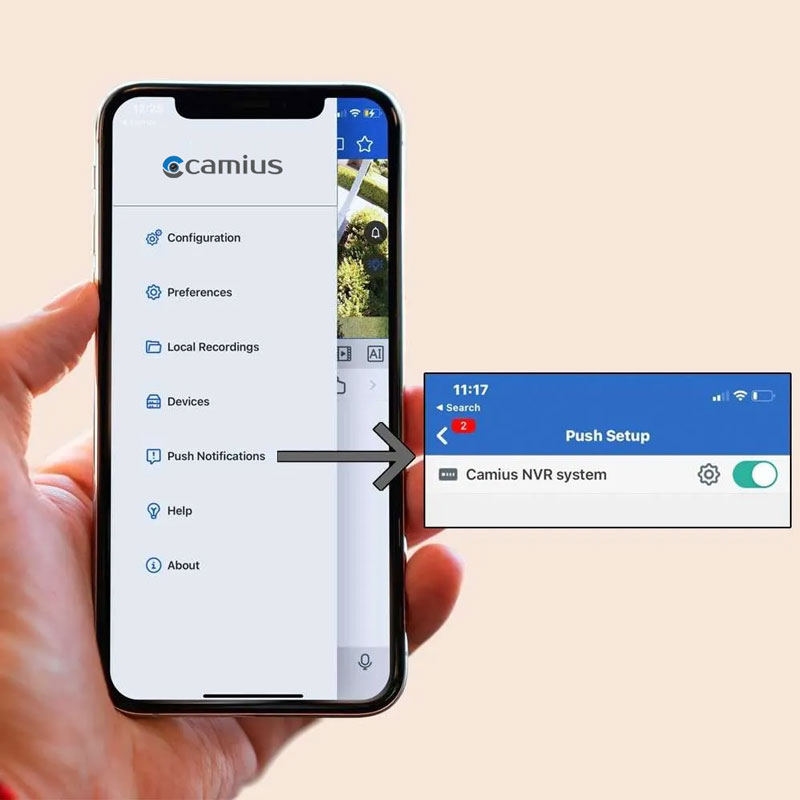
Tap on the App menu icon icon and then the Push Notifications icon App push notifications icon , select the device and enable the desired per-channel motion detection alerts, disk error detection alerts, and more.

More about:
Camius View Security

The Camius View app uses TLS with AES to encrypt traffic. Login uses SRP-6a, so your password stays on your phone. The recorder keeps only a verifier. During login both sides prove they know the secret without sending it. Remote access works by Device ID over encrypted P2P. No port forwarding. Video stays on the NVR.

Think of it as a strong lock for data that uses one secret key. Common key sizes are 128 and 256 bit. It is fast and trusted worldwide.

This sets up an encrypted tunnel between the Camius View app and your recorder, or a relay if needed. It helps block snooping and tampering.

During login your password stays on your phone. The recorder stores only a math-based verifier, not the password. Both sides prove they know the secret without sending it.

  • If you can’t access your Camius security device in the app, check this guide
  • If you forgot your Camius recorder’s password, please click here for the password resetting tutorial.

FAQs about Camius View smartphone app

On your network or digital video recorder, go to the Startup Wizard or Network menu to confirm your P2P ID checkbox is ticked and make sure the device is Connected to the network. Then, scan the QR code in the Camius View app on your phone to link your system.


No. Encryption works in the background without reducing resolution or frame rate. You still get clear live viewing and smooth playback with added protection.

Use the password recovery options set during the initial setup. Depending on your model, you can reset via security questions, reset button, or by contacting Camius support with your device MAC address & the system date.

On your recorder, go to Setup → Channel → Deterrence. From there you can turn the light or siren on or off, set how long they stay active, and create a schedule. In the Camius View app, you can also manually trigger the lights and siren or turn them off at any time.

If you previously received alerts and they stopped, your phone likely reached its notification limit. When about 49 notifications are received but not checked, most smartphones stop accepting new ones. Open your phone’s notification panel, tap the checkmark to clear or mark all old Camius View notifications, then test again.
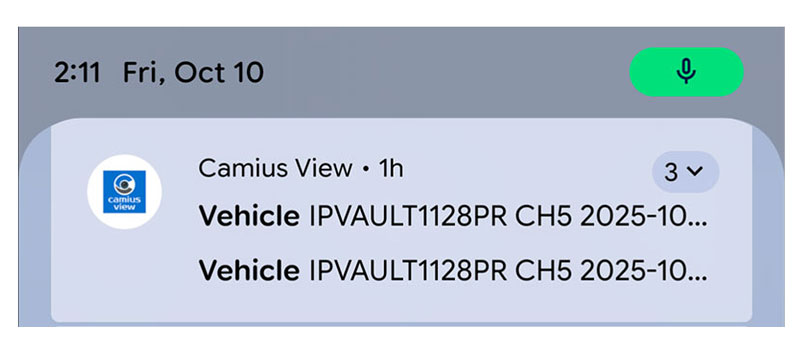
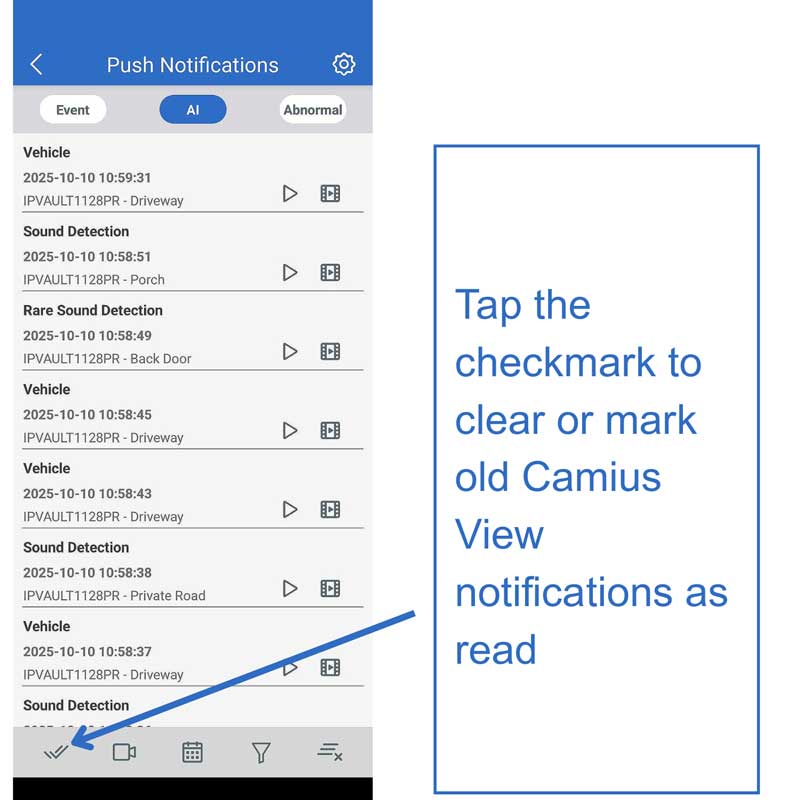
Camius view push notifications list

Camius View push notifications